
Browse frequently asked questions about Account
Navigate to the Settings page from the sidebar. You'll find three sections:
Profile — View and edit your name, email, role, and account status. You can also update your password from here.
Discord — Connect your Discord account to join the JarvisFlow community server. The connection process uses Discord OAuth and requires two steps: joining the server first, then linking your account.
Billing — View your subscription details, check payment status, and manage your subscription.
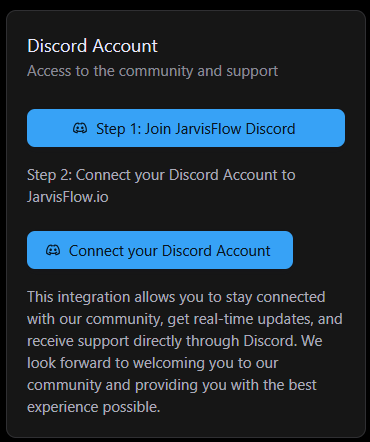
Connecting your Discord account gives you access to the JarvisFlow community server.
Steps:
Once connected, you'll see a green indicator and a direct button to open the Discord server.
Join our Discord community or reach out to our support team for personalized assistance